

Members
Invite teammates and control what they can do.
Members are added to a workspace, and their role applies to every project in that workspace.
Viewing members
Go to Settings → Members. Only workspace owners can open this page.
The list shows each member's email, role, and when they joined.
Inviting a member
- Go to Settings → Members.
- Enter the person's email address.
- Pick a role from the dropdown (see below). Developer is the default.
- Click Invite.
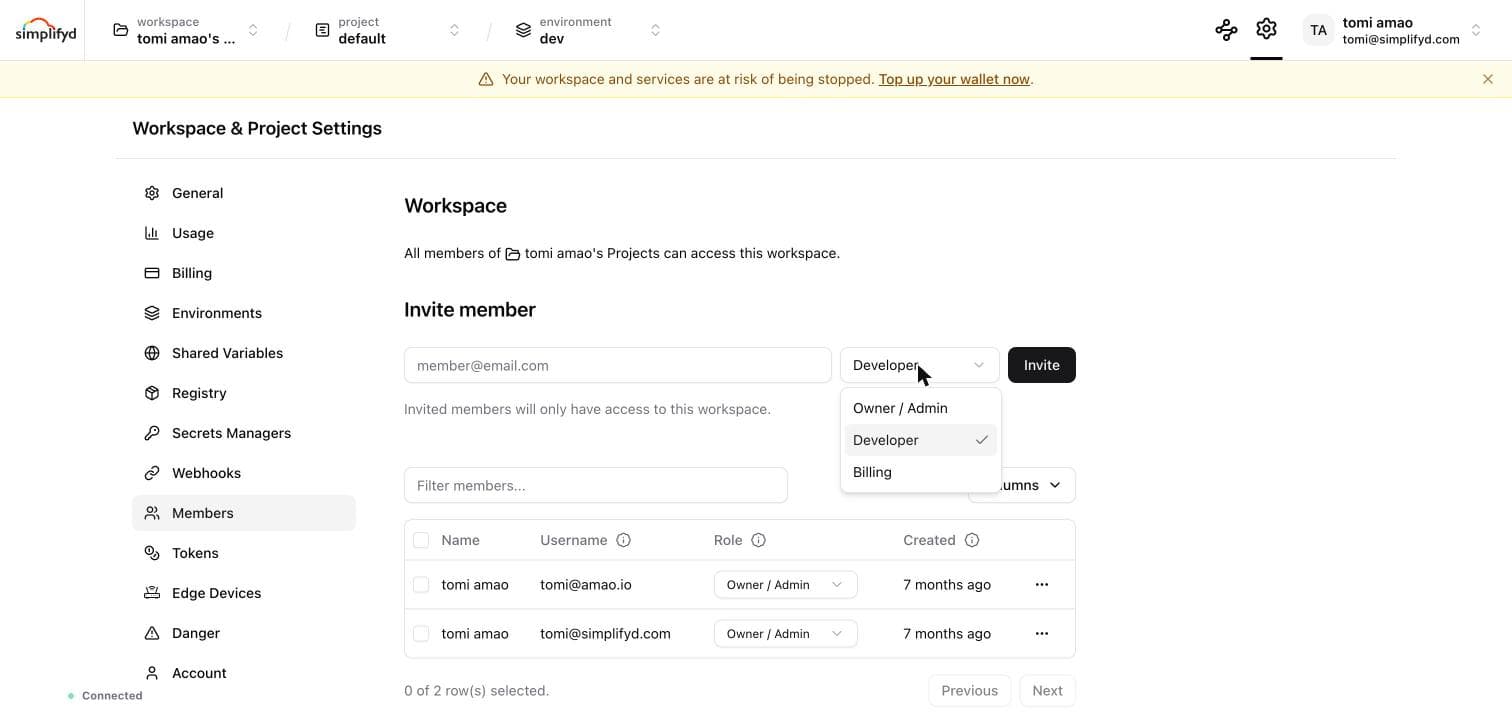
An invitation email is sent. The invitee does not need a Simplifyd Cloud account first — they are prompted to create one when they accept.
Roles
There are three roles.
| Role | Can do | Cannot do |
|---|---|---|
| Owner / Admin | Everything: services, deployments, variables, billing, members, and settings. | — |
| Developer | Create and manage services, deployments, and variables. | See or change billing; add or remove members. |
| Billing | See usage, fund the wallet, and view transactions. | Create or change services. |
Give day-to-day engineers Developer. Give finance or accounts staff Billing so they can top up the wallet without touching running services.
Changing a role
- Go to Settings → Members.
- Find the member and pick a new role from the dropdown in the Role column.
The change takes effect immediately.
A workspace must keep at least one owner. You cannot change the last owner's role.
Removing a member
- Go to Settings → Members.
- Click the menu next to their name and choose Remove.
Removed members lose access straight away. Anything they created stays in place.