

The canvas
The canvas is the map of the services in an environment.
It shows every service in the selected environment as a node, with lines between services that reference each other.
Switching environments
Use the environment selector at the top of the page to switch between environments (e.g. production, staging). The canvas re-renders to show the services and their statuses in the selected environment.
Service nodes
Each service appears as a node on the canvas. The node shows:
- Service name — click to open the service panel
- Status badge —
running,stopped,error, etc. - Service type icon — Docker, Postgres, Redis, Kafka, gateway, bucket, or static site
Click a node to open the service panel on the right. Which tabs appear depends on the service type — a Docker service has Deployments, Variables, Metrics, and Settings; a Postgres service also has Backups.
Adding services
Click + Add at the top right of the canvas, or press Cmd + K (Mac) / Ctrl + K (Windows and Linux). A search box opens — start typing to filter, or pick from the list.
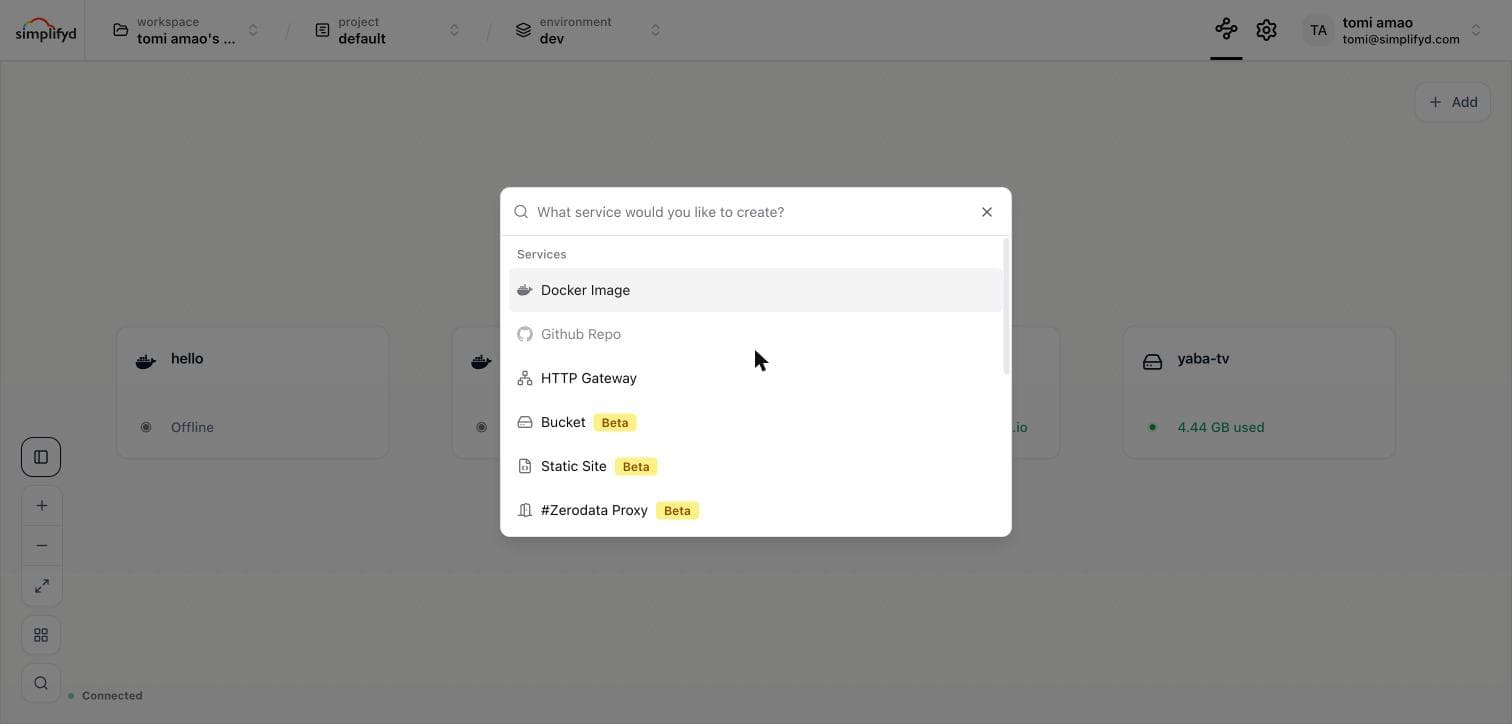
| Option | What it adds |
|---|---|
| Docker Service | Any container image, public or private |
| Postgres | A managed PostgreSQL database |
| Redis | A managed Redis instance or cluster |
| Kafka | A managed Kafka cluster |
| Bucket | S3-compatible object storage |
| Static Site | A site served from object storage, with no container |
| HTTP Gateway | One hostname routing paths to several services |
| Zerodata Proxy | A data-free proxy in front of an app hosted elsewhere (Beta) |
The same box also jumps to Account, Billing, and Settings, so Cmd + K works as a general command palette.
Two entries, Github Repo and Template, are shown greyed out — they are not available yet.
Staged changes and the Apply Changes bar
Changes are staged, not applied straight away. When you add, remove, or reconfigure a service, the edits collect into a changeset.
The Apply Changes bar appears at the bottom of the canvas whenever there are pending changes. It shows a summary of what will be created, updated, or deleted.
- Click Apply to commit the staged changes and trigger deployments.
- Click Discard to revert all uncommitted changes.
Variable changes also go through the staged changes flow. You must click Apply after adding or updating variables for the changes to take effect.
Rearranging the canvas
Nodes can be freely dragged to any position on the canvas. The layout is preserved between sessions.
- Pan — click and drag on the canvas background
- Zoom — scroll wheel or pinch gesture
- Fit view — double-click the canvas background to fit all nodes in view
Renaming and deleting
Click a service node to open its panel. Rename it with the pencil icon next to the name in the panel header, and delete it from the Danger section of the Settings tab.