

Services
Create and manage services on the Simplifyd Cloud canvas.
A service is a workload or managed resource running inside an environment. Simplifyd Cloud supports these service types:
| Type | What it is | More |
|---|---|---|
| Docker | Any container image — your own app, a public image, or a third-party tool. | below |
| Postgres | A managed PostgreSQL database. | Postgres |
| MySQL | A managed MySQL database. | MySQL |
| Redis | A managed Redis instance or cluster. | below |
| Kafka | A managed Kafka cluster for event streams and job queues. | below |
| Bucket | S3-compatible object storage. | Buckets |
| Static site | HTML, CSS, and JS served from a URL. No container runs. | Static sites |
| Send email from your apps with Why.email, over SMTP or its API. No container runs. | ||
| HTTP Gateway | One public hostname routing paths to several backend services. | HTTP Gateway |
| Zerodata Proxy | A data-free proxy in front of an app hosted elsewhere. | Zerodata Proxy |
Creating a Docker service
- Click + Add at the top right of the canvas, or press
Cmd + K, and choose Docker Image. - In the service creation panel, enter the Docker image name (e.g.
nginx:latestorghcr.io/my-org/my-app:main). - Configure resources and click Add.
- An Apply Changes bar appears at the bottom — click Apply to deploy.
Docker service settings
Open the service panel → Settings tab to configure:
| Setting | Description |
|---|---|
| Image | Docker image path and tag |
| vCPUs | Number of virtual CPU cores |
| Memory | Memory limit in MB |
| Replicas | Number of running instances |
| Region | Where the service runs: Lagos (NG West 1 or NG West 2) or Amsterdam (EU West) |
| Start command | Override the container entrypoint |
| Health checks | Startup, readiness, and liveness probes |
Private registry credentials
By default, Docker services pull images from public registries without authentication. If your image is hosted in a private registry, you need to provide credentials so the platform can pull it at deploy time.
Supported registries
Any registry that supports standard Docker authentication is supported:
| Registry | Domain |
|---|---|
| Docker Hub | docker.io (default) |
| GitHub Container Registry | ghcr.io |
| GitLab Container Registry | registry.gitlab.com |
| Quay.io | quay.io |
| AWS ECR | <account>.dkr.ecr.<region>.amazonaws.com |
| Google Artifact Registry | <region>-docker.pkg.dev |
| Any OCI-compliant registry | — |
Configuring credentials
- Open the service panel → Settings tab.
- Under Source, find the Registry Credentials section.
- Click Add credentials.
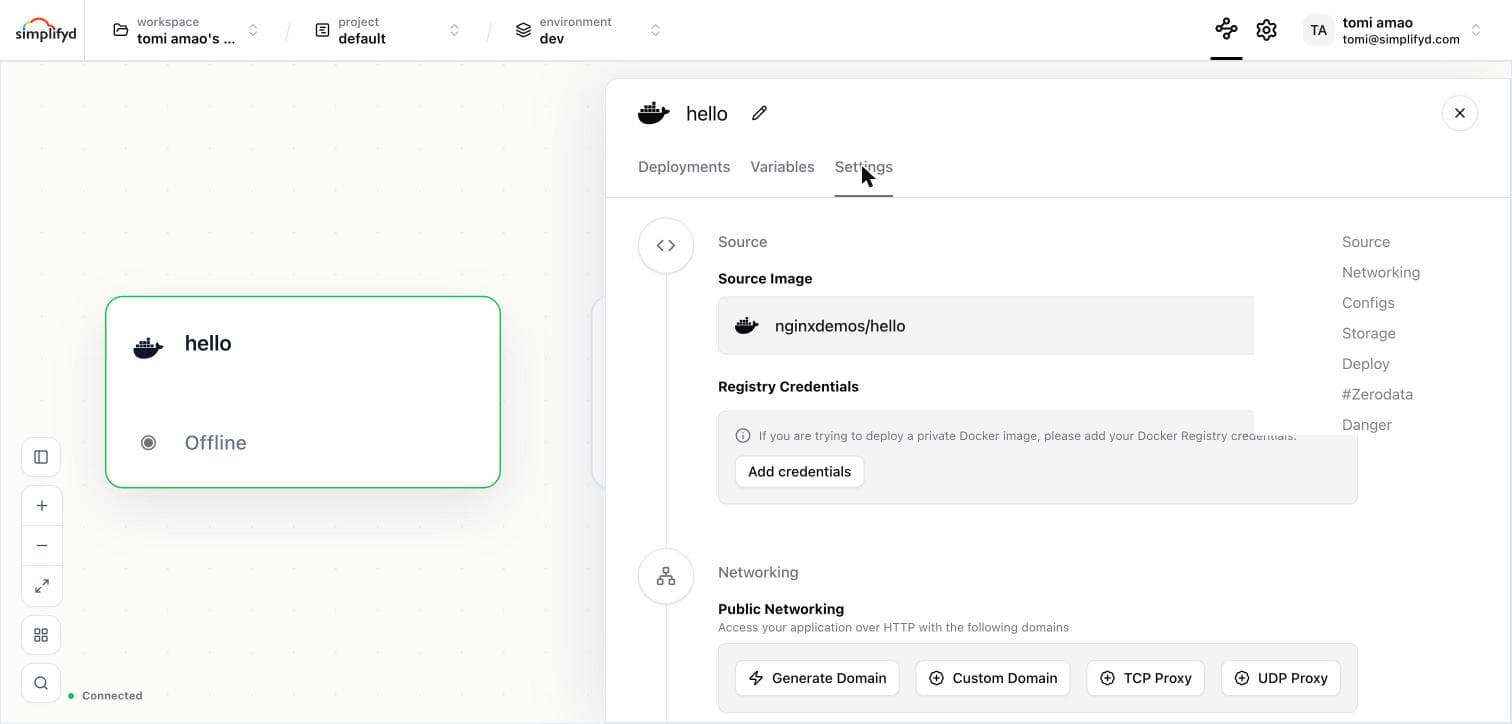 4. Enter your username and password (or token), then click Set credentials.
The credentials are saved and used automatically on the next deployment.
To update credentials, click Edit and re-enter them. To remove them entirely, open the form and click Clear credentials.
Credential format by registry
| Registry | Username | Password |
|---|---|---|
| Docker Hub | Docker ID | Personal access token |
| GitHub Container Registry | GitHub username | Personal access token with read:packages scope |
| GitLab | GitLab username | Personal access token with read_registry scope |
| Quay.io | Robot account name (namespace+robotname) | Robot account token |
| AWS ECR | AWS | Short-lived token from aws ecr get-login-password (expires after 12 hours) |
| Google Artifact Registry | _json_key | Full contents of a service account JSON key file |
Images hosted on the built-in Simplifyd Cloud registry (sdcr.io) never require credentials — authentication is handled automatically.
Image format
When using a private registry, include the full registry domain in your image path:
ghcr.io/your-org/your-image:tag
registry.gitlab.com/your-group/your-project/image:tag
your-dockerhub-username/private-repo:latest
For Docker Hub private images the domain can be omitted:
your-username/private-image:latestSecurity
Credentials are encrypted at rest using AES-256-GCM. Only the username is returned in API responses — the password is never exposed after it is saved. Credentials are decrypted only at deployment time when the image is pulled.
AWS ECR tokens expire after 12 hours. You must update the credential before redeploying if the token has expired.
Creating a Postgres service
- Click + Add and choose Postgres Database.
- Set the name and the storage size.
- Click Apply in the Apply Changes bar.
DATABASE_URL is set automatically and can be referenced from other services. See Postgres for databases, users, parameters, and resizing.
Creating a MySQL service
- Click + Add and choose MySQL.
- Choose how many servers and routers to run, and set the storage.
- Click Apply.
A MySQL service runs two kinds of node: servers, which hold your data, and routers, which take connections from your app and pass them to the right server. Both are billed, so a 3-server cluster with 1 router is 4 nodes.
Your app connects to the router, never to a server directly. See MySQL for how many of each to run, connecting, and what is not supported yet.
Creating a Redis service
- Click + Add and choose Redis.
- Pick a mode and set the storage.
- Click Apply.
| Mode | What you get | Use it for |
|---|---|---|
| Standalone | One node. | Caching, development. |
| Replication | One writer with read replicas. | Read-heavy workloads that must survive a node failure. |
| Cluster | Data split across several nodes, each with a follower. | Datasets too large for one node. |
Cluster mode runs a follower for every leader, so a 3-node cluster is 6 nodes and is billed as 6. Standalone is the cheapest and is enough for a cache.
The connection details appear in the service panel → Settings tab → Connection once the service is running. Redis is reachable over private networking only.
Redis holds data in memory. If you use it as a cache, size the memory for your working set — when it fills up, Redis starts evicting keys.
Creating a Kafka service
Kafka lets your services send and receive streams of messages. Use it for event streaming, background job queues, or passing data between services.
- Click + Add and choose Kafka.
- Pick a mode (see below).
- Set the storage per broker — how much disk each node gets for message logs.
- Click Apply in the Apply Changes bar to create the cluster.
Choosing a mode
| Mode | What you get | Use it for |
|---|---|---|
| Standalone | One node. Messages are not copied anywhere. | Development and testing. |
| Cluster | Several nodes that copy messages to each other. | Production. |
Standalone is cheaper and starts faster, but if the node fails you lose the messages on it. Cluster keeps copies on more than one node, so it survives a node failure.
If you choose cluster mode, you also set:
| Setting | What it means |
|---|---|
| Brokers | How many nodes handle your messages. Use at least 3 so a node can fail without data loss. |
| Controllers | How many nodes keep track of the cluster. Use an odd number — 3 is a good default. |
Storage cannot be changed after the cluster is created. Pick a size with room to grow.
Connecting to Kafka
Open the service panel → Settings tab → Connection. You will see a bootstrap.servers address once the cluster is running.
Use that address in your Kafka client. For example:
bootstrap.servers=my-kafka.abc12.simplifyd.internal:9092Kafka is reachable from other services in the same environment over private networking. It is not reachable from the public internet.
A new cluster takes a few minutes to start. Until it is ready, the service shows as starting and no connection address is shown.
Service panel
Clicking any service node opens the service panel on the right side of the canvas. The panel has four tabs:
| Tab | Description |
|---|---|
| Deployments | View active deployment, history, logs, and redeploy controls |
| Variables | Add, edit, and remove environment variables |
| Metrics | CPU, memory, and network usage charts. See Metrics and logs. |
| Settings | Service configuration (image, resources, ingress, etc.) |
Renaming a service
Click the pencil icon next to the service name in the panel header. Service names are used in reference variables — for example ${{my-service.PORT}}.
Service names have a maximum length of 32 characters.
Ingress / public endpoints
To expose a service on the internet, configure ingress in the service Settings tab:
- Find the Networking section.
- Click Generate Domain for a hostname assigned to you, Custom Domain for one of your own, or TCP Proxy / UDP Proxy for a raw port.
- Enter the internal port your service listens on.
- Click Apply to activate the endpoint.
HTTP and gRPC endpoints get a hostname and HTTPS automatically. TCP and UDP endpoints get a public port instead — see TCP and UDP endpoints, which also covers restricting who can connect.
The public URL or port appears in the Settings tab once the deployment is live.
Healthchecks
Healthchecks tell Simplifyd Cloud when your service is starting, ready to receive traffic, or needs to be restarted. Simplifyd Cloud supports three probe types: startup, readiness, and liveness.
Configure them in the service panel → Settings tab → Deploy section → Health checks, where each of Liveness Probe, Readiness Probe, and Startup Probe has its own + Add button.
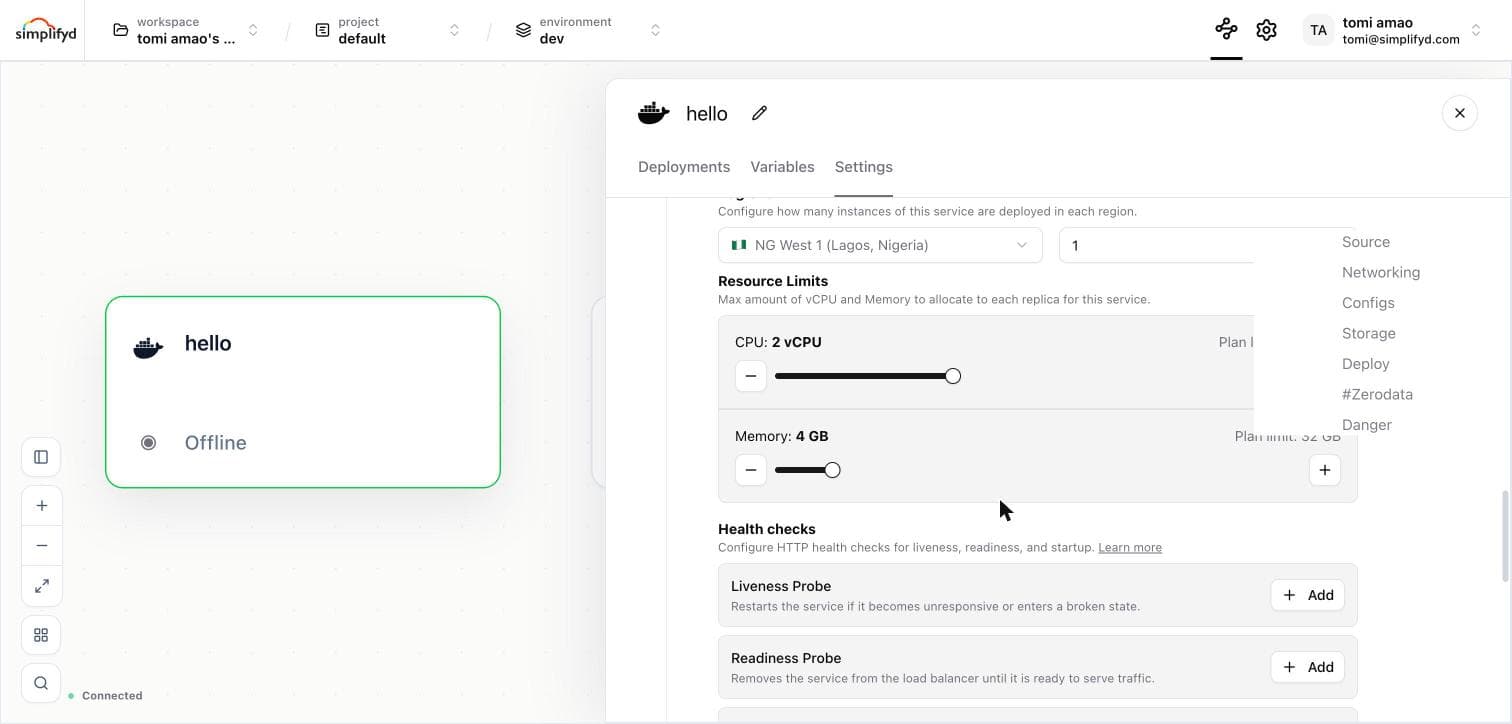
See the Healthchecks page for full configuration details, recommended patterns, and code examples.
Config file mounts
Configs let you inject static text files (e.g. Caddyfile, nginx.conf, application.yaml) directly into a service without building a custom Docker image. The file content is stored on Simplifyd Cloud and mounted at a path you choose every time the service is deployed.
Adding a config
- Open the service panel → Settings tab.
- Scroll to the Configs section and click Add Config.
- Fill in the dialog:
- Name — a human-readable label (e.g.
Caddyfile). - Mount Path — absolute path inside the service where the file should appear (e.g.
/etc/caddy/Caddyfile). - Content — paste or type the file content in the editor. The editor highlights syntax automatically based on the file extension.
- Name — a human-readable label (e.g.
- Click Save Config.
The config is stored but not yet active. Redeploy the service for the file to appear in the service.
Editing a config
Click the pencil icon next to an existing config to open it in the same dialog. Edit any field and click Save Config. Redeploy the service to apply the new content.
Deleting a config
Click the trash icon next to a config and confirm. Redeploy the service to remove the mount from the service.
Variable interpolation
Config content can reference service variables using the ${{VAR_NAME}} syntax. Variables are resolved at deploy time, so the stored content always keeps the original placeholders and they are re-evaluated on every deployment.
# Caddyfile
${{SERVICE}}.${{ENVIRONMENT}}.internal {
    reverse_proxy localhost:${{PORT}}
}
Available built-in variables: ${{SERVICE}}, ${{ENVIRONMENT}}, ${{PROJECT}}. Any variable you have set on the service (e.g. ${{DATABASE_URL}}, ${{PORT}}) is also available. Unmatched placeholders are left as-is.
Ephemeral storage
Ephemeral storage attaches a temporary volume to a path in your container, giving it more room than the container image alone.
- Open the service panel → Settings tab → Storage.
- Click Add Storage.
- Set a name, a mount path inside the container (e.g.
/var/cache), and a size in GB. - Click Apply.
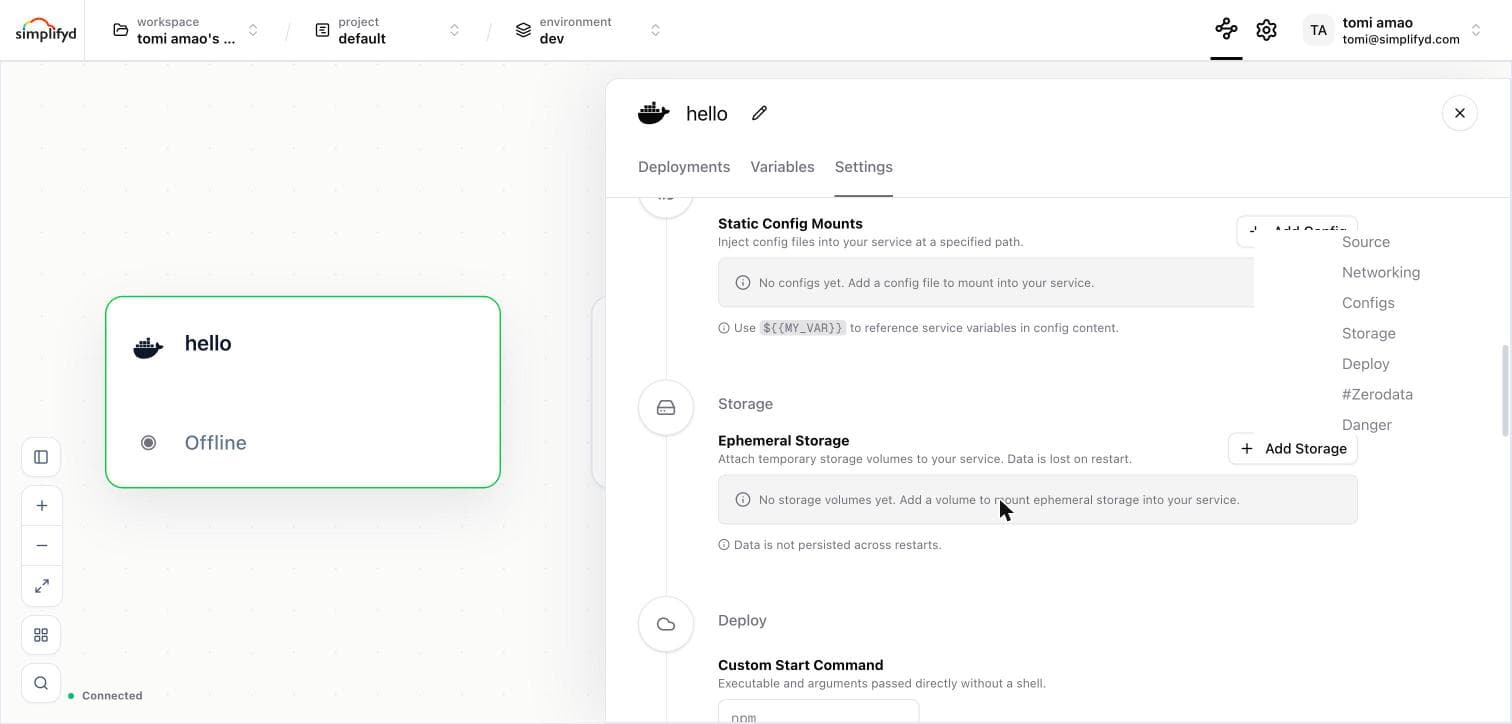
Use it for a disk cache, a scratch directory for large temporary files, or an index that is rebuilt on boot. Storage is billed on the size you allocate, not on what you use.
Stopping, starting, and restarting a Postgres service
Postgres services support three lifecycle controls available from the Deployments tab dropdown menu on the active deployment.
Stop
Stopping a service pauses the database and drops active connections. Your data is preserved.
To stop a Postgres service:
- Open the service panel → Deployments tab.
- Click the ⋮ menu on the active deployment.
- Click Stop and confirm.
The deployment card will show an amber STOPPED badge and the message "Service hibernated — storage billed, compute paused".
Only Postgres services can be stopped. Docker services should be undeployed instead.
Billing while stopped
When a service is stopped, a new deployment record is created with vCPU and memory set to zero. The billing system uses the deployment record to calculate charges, so:
| Resource | Billed while stopped? |
|---|---|
| Compute (vCPU + memory) | No |
| Storage | Yes — your data is retained |
Start
To resume a stopped Postgres service:
- Open the service panel → Deployments tab.
- Click the ⋮ menu on the active deployment.
- Click Start.
The service transitions from stopped to pending, then to running. No data is lost.
Restart
Restarting performs a clean service restart.
- Open the service panel → Deployments tab.
- Click the ⋮ menu on the active deployment.
- Click Restart and confirm.
Active connections are briefly interrupted (typically under 30 seconds). Billing is unaffected.
Restart is useful for recovering from connection pool exhaustion or applying postgresql.conf changes that require a server reload.
Redeploying while stopped
If you click Redeploy while a service is stopped, the service is started automatically and a new deployment is created with the configured vCPU and memory. You do not need to manually start it first.
Deleting a service
Open the service panel → Settings tab → scroll to the bottom and click Delete Service. Confirm the deletion. The change is staged — click Apply to permanently remove the service and all its deployments.
Deleting a service is irreversible. All deployments and data associated with the service will be permanently removed.