Settings
General info, usage, billing, tokens, webhooks, secrets managers, and account settings.
Open settings from the gear icon at the top right of the canvas. The page is titled Workspace & Project Settings, and the sidebar lists each section.
Some sections are hidden depending on your role: Billing is visible to owners and billing members, and Members to owners only.
General
View and change the project name and description. The Project ID is shown here — you need it when calling the API.
Usage
Shows what the workspace has consumed in the current billing period, broken down by service.
| Line item | What is counted |
|---|---|
| Memory Usage | GB-hours, multiplied by the number of instances |
| CPU Usage | vCPU-hours, multiplied by the number of instances |
| Network Usage (Egress) | Outbound data transfer |
| Volume Usage | Disk attached to databases and storage volumes |
| Object Storage Usage | Data held in buckets and static sites |
| Zerodata Usage | Data through a Zerodata Proxy |
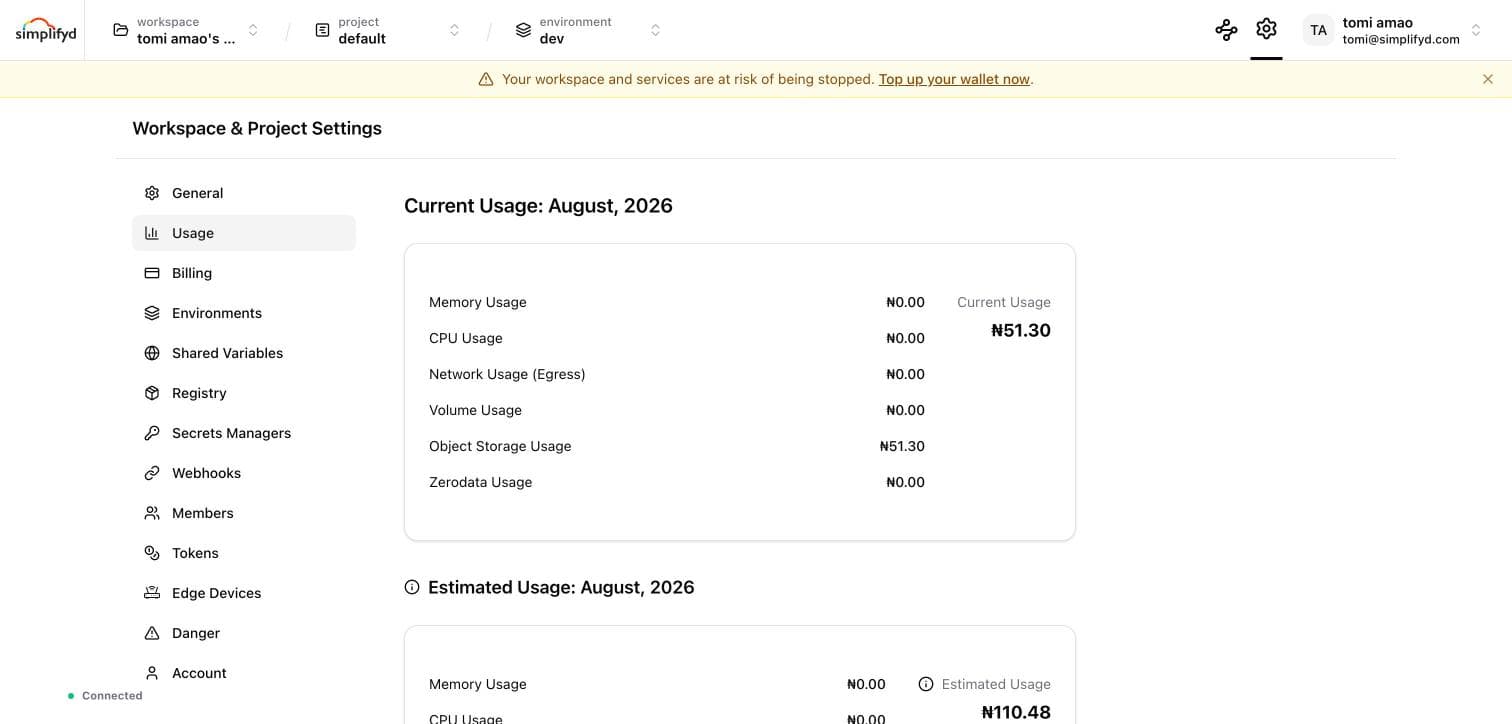
Current Usage is what you have spent so far this month. Estimated Usage projects where the month ends at the present rate, and tells you how many days of runway your wallet balance covers.
Billing
Simplifyd Cloud is prepaid. You fund a workspace wallet, and usage is deducted from it. There are no monthly plans or tiers.
The Billing page shows:
- Wallet Balance
- Billing History — monthly billing by cost component, over 3, 6, or 12 months, as a chart or a table
- Monthly Billing by Service — the same spend broken down per service
- Transactions — every top-up and charge, with reference, processor, and status
Funding the wallet
- Go to Settings → Billing.
- Click Fund with Paystack to pay by card, or Fund with Bank Transfer.
- Enter the amount.
For a bank transfer, the dialog shows the account details and an expected amount. Transfer exactly that amount — the wallet is credited once the transfer is confirmed. Use the refresh action if the wallet has not updated yet.
If the wallet runs empty, the workspace is suspended and running services are stopped. Top up before the balance reaches zero — the Usage page's runway estimate tells you how long you have.
Environments
Create, rename, and delete environments. See Environments.
Shared Variables
Variables available to every service in an environment. See Variables → Shared variables.
Registry
Your workspace's private container registry on sdcr.io. See Container Registry.
Secrets Managers
Connect an external secrets manager so services read secrets from it at runtime instead of storing values here. See Secrets managers.
Webhooks
Get an HTTP notification when a deployment event happens.
- Go to Settings → Webhooks.
- Click Add Webhook.
- Enter the destination URL and pick the events you want (deployment started, succeeded, failed).
- Click Save.
Payloads are sent as JSON POST requests.
Tokens
Tokens give scripts and pipelines access without a user account. A token can cover a whole project or a single environment.
Creating a token
- Go to Settings → Tokens.
- Click New Token.
- Enter a name and pick the environment to scope it to.
- Click Create and copy the token now — it is not shown again.
Revoking a token
Find the token in the list and click Delete. It stops working immediately.
Never commit a token to version control. Keep it in your CI/CD secrets store.
Danger
- Delete project — removes the project, its environments, services, and deployments. You type the project name to confirm.
This cannot be undone.
Account
Your personal settings, not the project's:
- Change your display name and email
- Change your password
- Turn on two-factor authentication
- Review connected apps that have access to your account
- Delete your account