

Two-factor authentication
Add a second step to your login using an authenticator app.
Two-factor authentication (2FA) means that signing in needs your password and a six-digit code from an app on your phone. Someone who steals your password still cannot get in.
Turning it on
- Go to Settings → Account.
- Find Two-Factor Authentication and click Enable 2FA.
- Scan the QR code with an authenticator app — Google Authenticator, 1Password, Authy, or any other app that supports time-based codes.
- Enter the six-digit code the app shows and confirm.
If you cannot scan the code, use the setup key shown next to it and enter it into the app by hand.
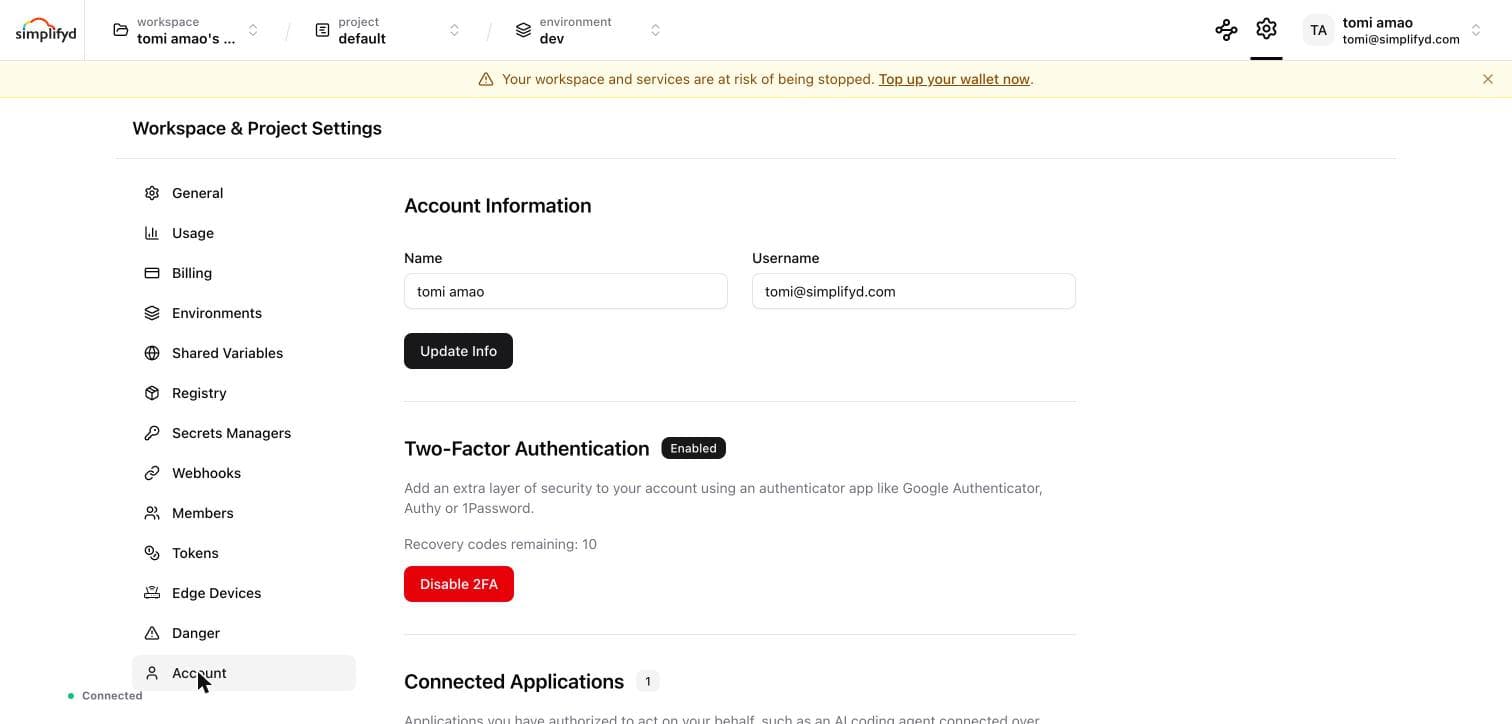
Once it is on, the section shows an Enabled badge and how many recovery codes you have left.
Recovery codes
When 2FA is turned on you are given a set of one-time recovery codes. Each one signs you in once, in place of a code from the app.
Save the recovery codes somewhere other than the phone with the authenticator on it — a password manager, or printed and put away. If you lose both the phone and the codes, you cannot sign in yourself and will need an administrator to reset 2FA on your account.
Signing in with 2FA on
- Enter your email and password as usual.
- You are asked for a six-digit code. Open the authenticator app and enter the current code.
Codes change every 30 seconds. If one is rejected, wait for the next and try again — this is usually a clock that has drifted on the phone.
To use a recovery code instead, enter it where the six-digit code goes. A recovery code works once and is then used up.
Turning it off
Go to Settings → Account and click Disable 2FA.
If you are locked out
Ask a workspace owner to contact support. An administrator can clear 2FA on your account, after which you sign in with your password alone and can set it up again.